

Building a Website with Drupal 6 – Part 2: Installing Drupal 6
In the first part of this tutorial we introduced Drupal 6. As part of your homework I asked that you install a webserver and get an FTP program so that you can install and run Drupal. In this tutorial we’re going to go ahead and start the process of installing and configuring our Drupal install.
The website that I am building and showing you screenshots of is Learn Drupal, the Drupal resource site that I mentioned in the last post. I am building it online so that you can follow along or visit later and see how different things that we mention here were implemented.
1. Create your settings.php file.
You can do this step before or after you upload the Drupal install files onto your server. Go into the sites/default folder. Here you will find the file default.settings.php. Copy and paste this file and rename the copy to settings.php. So you should now have two files in the sites/default folder – settings.php and default.settings.php. Drupal needs both of these files to exist for the install to be successful.
2. Create Database
If you haven’t done so yet, upload the contents of your Drupal folder to where you’re going to have your website. Also, you should already have created a database for your Drupal install and added a user with all privileges to your database. Note this information somewhere.
3. Change Permissions: To be able to create your website, you will need to change permissions on the settings.php file that we created in step 1 to make it accessible to Drupal during the install. You can change permissions using your FTP program in most cases, or in cPanel if you’re developing live. You can also use the CHMOD command if working from the command line. Change the permissions on the settings.php file to 666. Once the installation is done, Drupal should change the permissions to 555, and if it doesn’t, you should.
4. Run the Install: Assuming that all is set to go, open your browser and type the url of the site where you’re creating your install. In my case it’s http://learndrupal.maryspad.com. In your case, if you’re developing locally, it may be http://localhost/learndrupal or something similar. You will be presented with the install screen.
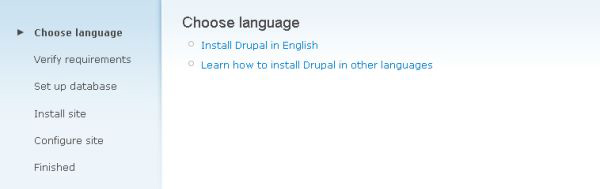
I am going to be installing and running my site in English so that’s the option I’ll select.
The next step is to enter the database name, user, and password information we saved in step 2.
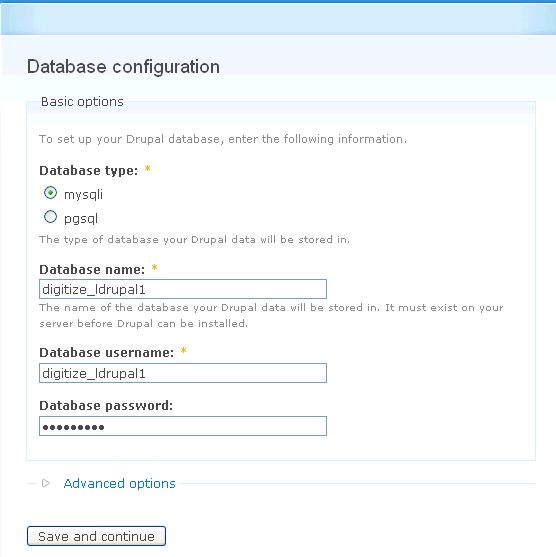
We don’t need to worry about the Advanced options at this stage and for this simple install. You can open it to look at it, but generally the database host will always be localhost. The other options do not apply to our simple install.
If you have entered the information correctly, you will see a screen allowing you to do some intial site configuration. Enter your site name and email address in the indicated boxes. You can always change these later in the site configuration.
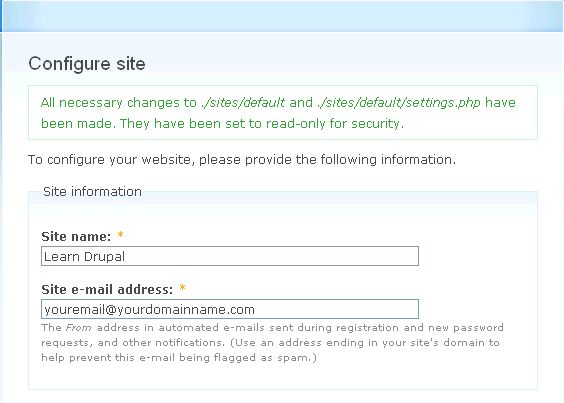
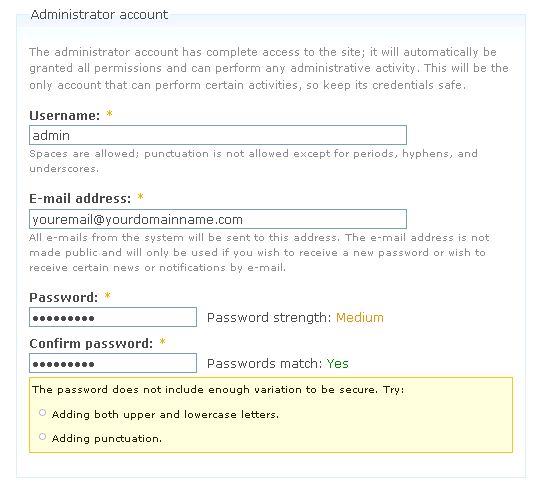
As you can see from the screenshot, the permissions for the settings.php file that we changed in step 3 have been changed back for site security. The next step is to enter administration information as below. Make sure you use a nice strong password.
And finally, check your server configuration settings.
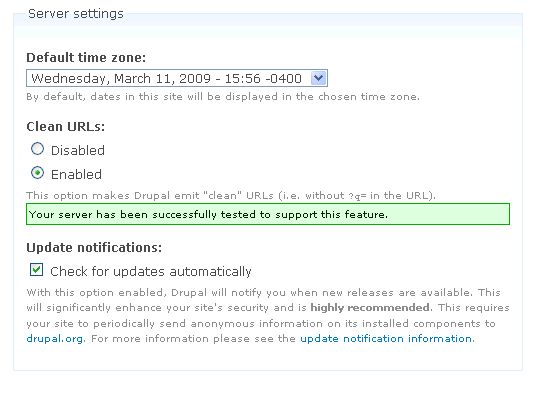
If you server is set to allow clean urls then you definitely want to enable clean urls, for search engine optimization reasons, so that your urls are clean and don’t have ?q= in them. If you can’t enable clean urls, it means that your server is not set to allow mod-rewrite. Searching Google will dig up lots of information on how to change your server settings to allow this. We won’t go into detail on this at this point since our aim is to learn how to build a drupal site, but I’ll be happy to answer any specific questions in the comments section.
You want to enable automatic update searching and notification so that you can always know when you need to update your install for security and functionality reasons. The Drupal team is constantly improving on Drupal and making sure all holes are patched and you want to stay updated to take full advantage of this.
Once you’re happy with all your settings on this page, click Save and Continue and you will now see a screen declaring that your site is installed and ready to go.
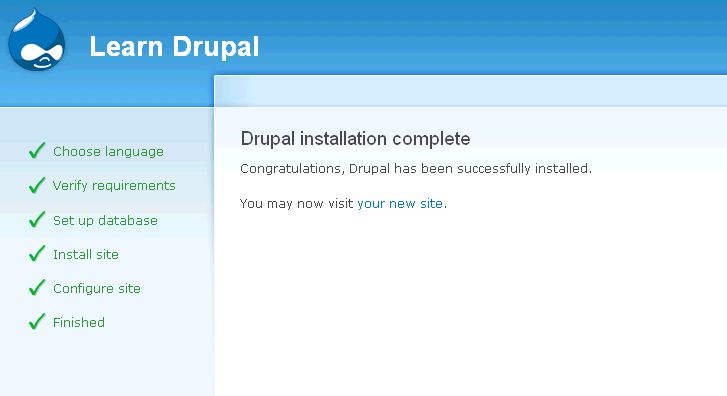
You’ll also notice that instead of saying “Drupal” at the top, our website now says “Learn Drupal” or whatever site name you entered in the Site Configuration. If we click on the link that says “your new site” or even just click on your site name at the top, it will take you to your brand spankin’ new Drupal site.
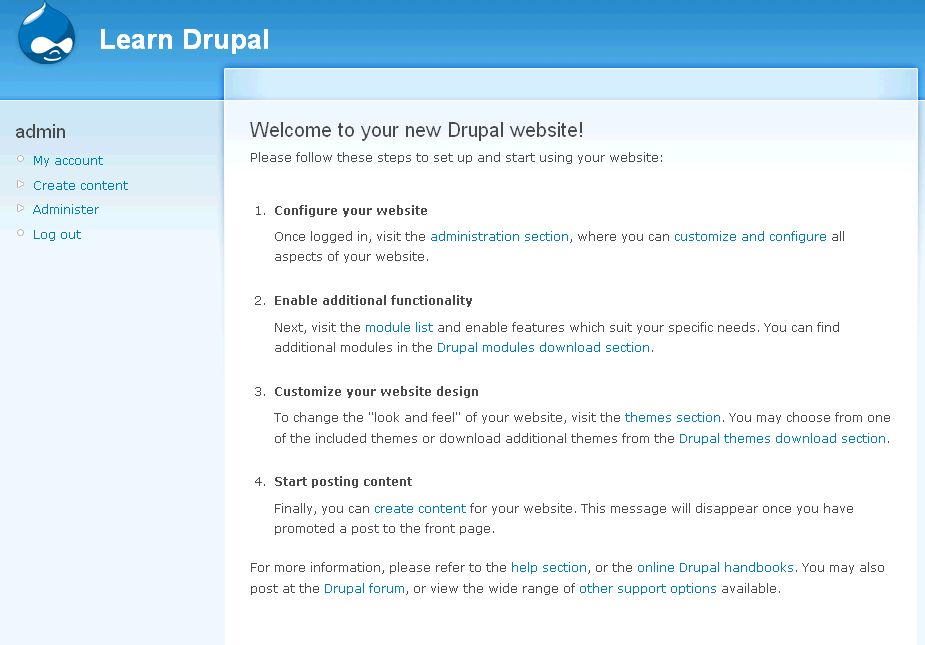
If you’ve made it to this point, CONGRATULATIONS! You have a basic functional Drupal website!
We will pick up from this point on and continue to configure our website in Part 2 of this tutorial.

Added to DrupalSightings.com
I have from another test a website in on my D:\ in D:\wamp\www\drupal-6.19
So I have installed wamp on D:\ and a website on http://localhost/drupal-6.19/
I do not succees in creating a website in http://localhost/learndrupal/
I created a database learndrupal.
Any help?
I think I found it myself at last. I had to install Drupal in /learndrupal
Piet
I’m not sure what you mean. Could you clarify your question. What are you having trouble with, creating a new database? You can create multiple databases and websites on Wamp.
mary
So what I do now to create a new website (on localhost) is install drupal in a directory like “D:\wamp\www\newsite copy the default.settings.php to setting.php and start configuring the website. So I install Drupal in a new directory for every new website. Is that the correct way to do it?
Piet
Yes, that’s how you do it. You can create multiple Drupal websites on Wamp. You can also do a Drupal multisite install which allows you to use the same codebase to run multiple sites. This isn’t necessary if you’re just learning Drupal and might be more confusing, but once you get more comfortable with deploying Drupal websites, it might be something you want to learn more about: http://drupal.org/getting-started/6/install/multi-site
mary
Hi Mary,
Congratulations for your very inspiring tutorials. I’m using mostly MODx and Drupal since I’ve read your blog :).
Something I didn’t find: do you know a Drupal module that would automaticaly create basic content (Pages, Story, …) to make the site usefull right after installation?
Thanks again,
Thierry.
Thierry
Take a look at the Devel module (http://drupal.org/project/devel). It’s one of the most useful modules for developing Drupal sites.
mary
y sometimes the installation will not go final step.it will be stopped at congiration step only.I dont know what is the reason but i faced this with local drupal installation.
There could be any number of reasons but it sometimes happens if you forget to make a copy of the default.settings.php file and name the copy settings.php. This is in the sites/default folder.