Care for some Java?

Then you need to visit Another Random Developer Blog.  This is a Java development blog with some great tutorials and practical code tips, tricks, and snippets that you can actually use.  Even though I am not a Java developer I’ve been following the tutorials on this blog keenly,  and I know anyone who’s even remotely interested in Java will enjoy them too.   So there’s another useful resource for all developers (and aspiring developers) out there.

As an aside, the fourth part of the Drupal tutorial series will be posted soon, but be sure to check out Another Random Developer Blog.

Building a Website with Drupal for Newbies – Setting up your Site

This is the third in a series of tutorials on how to build a Drupal website. In the first segment we introduced Drupal, and went over what we would need to work with Drupal. In the second part, we went over how to install Drupal, either using a script installer such as Fantastico, or manually. If you have followed the tutorials this far, you should have a clean Drupal install in its raw form, ready to go.

In this third installment, we are now going to start setting up our website, looking at and modifying some Drupal settings, and generally getting it to look more like a unique website. As I create this tutorial, I am going to be building a Drupal website, and putting the screenshots here so that you can follow along and see the website evolve as we go. Since the website will be evolving as the tutorials evolve, if you are reading this tutorial long after this post was written, the website may look nothing like the screenshots, but you will be able to see what we have done so far. Everything I do on the sample website I will describe here. The sample website that I am building to accompany these tutorials can be found at http://drupalpad.maryspad.com.

Assuming you successfully completed the install process as we described it, you can now log in using the user account that you created, which is the super user account, and start to build out your site. Remember that if you used a script installer to do your installation, the account was created automatically based on the information you gave. If you installed manually, then you need to create a user account, which will automatically be designated as a super user account. Log into your new website using this account, and let us start setting up our website.

I will outline here the steps I usually follow in the order I follow them. At this point, your website should be looking something like this:
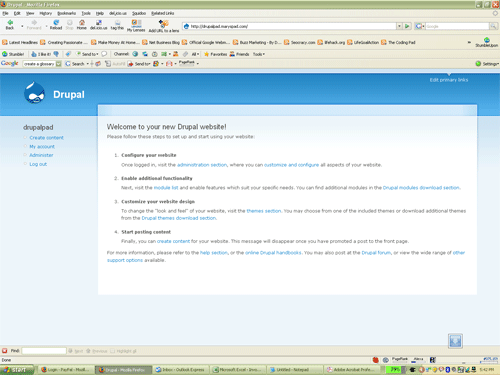
Drupal fresh site look

Site Configuration – this is usually my first stop. This involves setting up my site name, creating clean urls, and setting up other things.

a: Setting up Site Information

To set up your site information, click on Administer, on the left hand side panel. Click on “Site Configuration”, and then “Site Information”. Here you can enter your site name as you want it to appear at the very top, enter a slogan and mission if you want to, and footer information for your website. The site slogan and mission information are really optional, and if you enter it, you have the option to enable whether or not this information will be shown using the theme configuration, which we will go into later. In my example site, I will call the site The Drupal Pad.

In the footer section, you can enter information that will appear all the way at the bottom of every page of your website. This is an excellent place to put any copyright information and link to any other other websites you want to. One really cool thing is that you can use HTML in your footer. In my example, I want to mention that this website is part of the Coding Pad, and also enter some copyright information, so I enter this information there like so:

©2008 The Drupal Pad in partnership with <a href=”https://codingpad.maryspad.com”>The Coding Pad</a>

Then because I want to credit Drupal for this excellent CMS, I also enter the text “Proudly powered by Drupal” with a link to the Drupal website.

You can also set how you want to have Anonymous users designated should they post a comment or such, if you enable anonymous posting. I usually change this from the default “Anonymous” to “Guest”, because I think Guest sounds much friendlier.

b: Set up Clean URLs.

The next step that I do is to set up clean urls. These are much friendlier for SEO purposes, and more importantly, they allow you to change how urls will appear in the browser bar. So instead of the url looking like http://mywebsitehasdirtyurls.com/?qnode134 it will be a lot cleaner, like so http://mywebsitehascleanurls/node/1. You can go a step further, as we will in setting up this website, to change the urls so they are directly related to the title of the page, which will involve enabling the path module, and entering aliases for each of our pages. The end result will be our urls looking like so: http://mywebsitehasurlsthatrock/drupal-tutorial. This is so much more user friendly isn’t it?

We will go into how to do all this in a while, and will need to enable a module for this, but for now go ahead and enable clean urls. Drupal will first check to see if your server supports clean urls, so when you first click Clean URLs under Site Configuration, you will see the two radio buttons to enable or disable the clean urls, and then this message:

Clean URLs:
This option makes Drupal emit “clean” URLs (i.e. without ?q= in the URL.) Before enabling clean URLs, you must perform a test to determine if your server is properly configured. If you are able to see this page again after clicking the “Run the clean URL test” link, the test has succeeded and the radio buttons above will be available. If instead you are directed to a “Page not found” error, you will need to change the configuration of your server. The handbook page on Clean URLs has additional troubleshooting information. Run the clean URL test.

Click on the link to run the test, after which, if the test is successful, the radio buttons will be enabled and you can select “Enabled” and then save configuration.

There are many other settings that you can play with under Site Configuration, but these will do for now. I usually leave the rest at their default settings when I am first setting up a website, and then I go back in and change them as needed. Once you’ve become a Drupal guru you can decide what you went to change early and do it, but for now we will start with these two.

One more note, if you are expecting to have traffic while building up your site, you can temporarily take your site offline and leave a message to let your visitors know that the website is under maintenance and will return. This is particularly useful if you’re migrating your site and Drupal and don’t want visitors to be met with your new empty default install. You can still work on your site while it is offline and put it back online as soon as you’re satisfied that it’s ready for general viewing. If it’s a brand spanking new site and you expect to be done in a short while then it’s not necessary to do this.

To take your site offline or put it back online, go under “Site Configuration, and click on “Site maintenance.”

If you do take your site offline, please remember to get it back online when you’re ready. It’s easy to forget to do this since as the admin logged in you can see it, and you may forget that your visitors can’t see it.

You can see the progress so far with the site name and footer on my sample site here. Your site and mine still look pretty raw and have the Drupal content on the front, and besides the site title and the footer, there’s not much else there to make it look like a website, but in the next part we’re going to change all that… patience is the key.

In the next segment of this tutorial, we are going to start building our site. We will enable modules, and add content, and make some more changes to the settings that will make our website begin to look more unique and to have some substance to it, all pretty exciting stuff!!
Building a Website with Drupal for Newbies – Installing Drupal

There are many resources out there on how to install Drupal, so I am going to go over this in brief in this post.

If your webhost provides you with control panel that has a script installer, check if Drupal is listed. An example of a script installer is Fantastico, which comes with cPanel. Using a script installer makes the process pretty painless. Make sure though that you have the latest version of any scripts you may install using a script installer such as Fantastico. Otherwise, you may want to visit the homepage and download the updates.

In our case, we want to install Drupal 5.7. Even though there’s a new version out (6.0), as of this posting a lot of the modules have not yet been updated to work with 6.0. So we’ll go with 5.7.

If you don’t have a script installer like Fantastico, or you just want to do the install manually, the process is a little lengthier but not too complicated. There are install directions at Drupal webisite, but I’ll break them down here for you:

1. Create a database and user, and assign the user to that database. Make note of the database name and username and password as you’ll need them.
2. Extract the drupal archive that you downloaded into a folder on your hard drive.
3. Using your ftp program, upload the files in this folder into your domain folder where you wish to install Drupal.
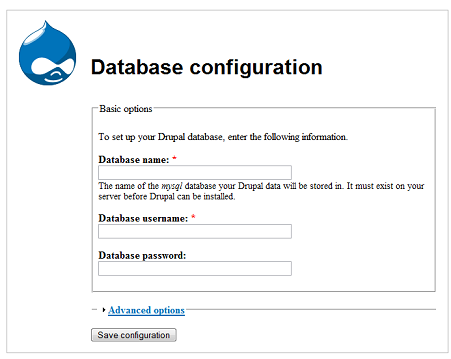
4. In your browser, type the name of your website where your drupal folder is sitting, and you will be prompted to enter your database information:

Drupal Install

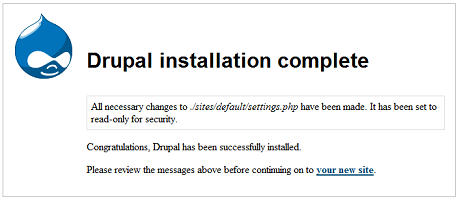
5. Enter the database configuration information from step 1, and then click on “Save Configuration.” If all is well, you will see this screen.

Drupal Install Complete

6. After this you will need to create a user account for yourself. This very first account that you create is designated by Drupal as the admin account and is a superuser account.

Your website is now installed and you’re ready to set it up, which we will cover in the next tutorial.

You can find more detailed installation instructions at the Drupal website (http://drupal.org/getting-started/5/install). If you have any problems doing this install you can post them here and we will discuss them, or you can also check the Drupal forums to see if there is a solution there.

In the next installment, we will walk through the process of setting up your new website.

Building a Website with Drupal for Newbies – Introduction

As promised in my post on Kings among Content Management Systems, I am creating a tutorial for newbies on how to create a Drupal website. Being a relative Drupal newbie myself, I figured this would be the best way for me to learn and share what I’m learning.

Several things I need to point out before we begin:

  • This is not the first Drupal website I am building, so it’s not trial and error, at the end of this tutorial you will have a functional Drupal website and enough tools and ideas to play with to advance your Drupal knowledge.
  • Why another Drupal tutorial? There are many many Drupal tutorials out there, some really good, some not so clear, so why another one? Well, before I decided to work with Drupal I had read a lot of things about how difficult it was, and about how steep the learning curve was. My first forays into Drupal weren’t very productive, and the tutorials weren’t very helpful. After digging some more I finally started to figure it out, so I decided to create a tutorial as I go, so that people new to Drupal have one more resource to follow.
  • This is a newbie tutorial, at least at it’s outset, so if you’re an expert, you may find it boring, but I welcome any comments and corrections and contributions. But don’t leave, stay and see how this develops, at some point it may be useful to you.

I have several goals in writing these tutorials:

  1. For you to learn how to build a pretty functional website that you can add content to and mold into more, and have the room and capability to expand, which Drupal is very good at.
  2. That after this series of tutorials you’ll go on past your first website to learn more and build more and share your tips and ideas with me and others.
  3. That I will learn more from writing these tutorials and from any questions or issues that may arise as you explore your ideas.

Drupal is currently, as of this writing, at Version 6.0, which was released just recently. However, this series of tutorials is going to cover version 5.7, mostly because version 6 is still very new and not all the modules have been updated yet. You can use version 6 but I can’t really guarantee that everything will work as described in these tutorials.

So what do you need?:

  1. Somewhere to host your new website. You can use a free host and free subdomain if you wish, but if you want this to be a serious project, I suggest that you get a domain name and a hosting plan, because you never know where this project will go. You may end up building something that you want to hold on to and develop! You can try GoDaddy.com Hosting Plans or Hostgator.
  2. A domain name, if you choose to go that route. You can get a cheap .info for starters. You can also choose to build your website on a subdomain of one of your main domains, which is what I will be doing throughout this tutorial.
  3. Drupal, which is free and can be installed using a script installer such as a Fantastico, or manually. I will describe all this in the next installment so don’t worry too much about it at this point.
  4. Inspiration – just look at some of the sample Drupal websites I posted in Kings among Content Management Systems to see what is possible, and to start generating your own ideas. You can also visit http://www.drupalsites.net/ to see an assortment of Drupal sites.
  5. A notebook and pen, if you like taking notes.
  6. Your favorite beverage and some snacks.
  7. A sense of humor.

What don’t you need to bring with you?

  1. Programming knowledge of any kind: While it would be nice to have, and it may come in handy at some points, it really isn’t necessary to bring any programming knowledge to the table. If you need to know something, such as how to create a database for the installation, and you don’t know it, I will either show you how to do it, or point you to a tutorial that explains it in a way that I think is easy to understand.
  2. A pet turtle: I have one, but that doesn’t mean you need one.

So get everything set up, and decide what you want your website to be about, and in the next installment we will start working on building a website with Drupal.

The Painless Way to Migrate a WordPress Blog

First, let me say that the Drupal tutorials are on the burner, and I will be posting the first segment soon. But today I want to talk about moving a blog. I’ve had some hosting issues that have forced me to consider terminating my relationship with one of my webhosts. This means, of course, that I must move my websites that are hosted on that server to another server, a process that I was dreading with all my heart, because there are databases and so much customization involved and I am terrified that I will mess up and lose a lot of time.

I started the migration process with several blogs/websites built on WordPress, and it was a surprisingly painless process that didn’t require me to touch the database or any config files. Bear in mind that the blog was maintaining it’s name and domain name, and all I was changing was webhosts. I will go step by step to describe what I did. First, let me say that I tested this method by creating a subdomain on one of my other domains on the new server and transferring the blog there, to make sure it would work, so that helped reduce my fears.

  1. Back up all files and database: As always, whenever you’re planning to make any major changes, you want to make sure you have current backups on your computer. So using cpanel, I downloaded a backup of the WordPress database, and then downloaded the whole folder that my website was in using FireFTP. This is an important step because it will allow you to recover your files should anything go wrong. You will also need the wp-plugins and wp-themes folders for your new setup.
  2. Create and Export an XML file of the blog: This is what makes the migration so painless, that new versions of WordPress have this capability. While in the admin area, click on “Manage” and then open the “Export” tab. This creates an XML file that you will then use to recreate your blog. Since my blog has only one author I didn’t need to use the filter, so I just hit “Download Export File”. You want to make careful note of where you save this file.
  3. Change DNS settings for domain name: Once I had my backups saved, and I had exported the XML file onto my desktop, the next step was to transfer my domain name to the new webhost (Hostgator) where I wanted to set up the blog. This was simply a matter of changing DNS settings at my registrar. I logged into my GoDaddy account and made the changes, and waited for the confirmation email so that I could continue.
  4. Install WordPress: Once the domain name changes showed up in my email, I then proceeded to the cpanel for my new webhost, set up the domain as an addon domain and installed the latest version of WordPress on the domain name. I then logged into the new WordPress install, and deleted the default post, page, and comment.
  5. Import posts into the new blog: Now that I had a clean install of WordPress running, I imported all my posts from my old blog into this new one. The process was pretty much the same as exporting. In the admin area, go into “Manage”, and select the “Import” tab. Choose WordPress as your source, and then hit browse and navigate to where you saved the XML file you downloaded in Step 2. In my case, I used the same username creating the new blog as the old one, so I just used the default import setting for the author. Voila! My posts and comments were all imported!
  6. Restoring themes and plugins: The next step was to set everything up the way had it on my old blog, including ads, Analytics, and all my plugins. Again this proved to be really simple. Using my FTP program, I uploaded the wp-plugins and wp-themes folders that I had downloaded from my old location and overwrote the new ones. I then had to go into “Presentation” and select the theme to activate it. To restore my plugins, I found I had to go into “Plugins” and reactivate them all to et them working again, but that was pretty trivial in this case. If you have uploads you may want to upload the whole wp-contents folder.
  7. CleanUp: The last clean up steps involved scrutinizing my blog and making sure that everything was in order. Sometimes you link to other files that aren’t necessarily in the WP folder, such as images you may have saved somewhere else, so you want to make sure you check all that and migrate any other external files as needed. I also needed to clean up the blogroll. Once I was satisfied that the new blog was working like it should, I then went back to my old hosts and deleted all the files, the database, and the addon domain.

So in less than 30 minutes, I transferred my blog with all my posts and comments from one host to another. That was pretty painless!