Welcome to part 2 of our series of tutorials on building a website with MODx CMS. In part 1 we had a brief introduction to MODx, and in this second installment we’re going to download and install MODx and do some basic configuration.
Following the modality of other tutorials on this blog, I am actually going to build a website to accompany this tutorial so that you can track your progress with mine and see the actual end product of the different techniques and skills that we’ll be covering.
As of this writing, MODx is currently in version 0.9.6.3. Do use the latest stable version. If any of the steps in these tutorials change, I will do my best to make a notation in the relevant posts.
NB: I initially wrote these tutorials for MODx Evolution 0.9.6.3 but if you’re using Evolution 1.o+ they will work just fine. There are some changes in terminology, and you can get a basic idea of the differences by watching this screencast that I created. If it makes you more comfortable you can work through these tutorials using 0.9.6.3 and then upgrade your website to 1.0+ following the directions on this screencast. These tutorials will NOT work for the Revolution 2.0+ branch of MODx.
What Will We Build?
Well, just like we’re doing in the Drupal series, we’re going to build a MODx resource site aptly named Learn MODx, but the skills we learn and use as we build this website can be extended and adapted to any kind of website you want to build. Because MODx is highly adaptable and flexible, you will find that there can be many ways to accomplish one goal, and the way we do it here is not the only way to do it. I welcome your feedback, comments, and suggestions at every step.
I will use a lot of screenshots as I go so that even if you’re not following these tutorials as I create and my links look nothing like your evolving website, you can still compare your website with my screenshots.
The first step is to download the MODx package from the MODx website. Unzip the file onto your desktop and then copy or upload the contents of the folder to your webserver.
Installing MODx
If you now navigate to the url of your project (e.g. localhost/modx or whatever your url is), and you’ll be presented with the install screen. In my case, I am navigating to http://learnmodx.maryspad.com.
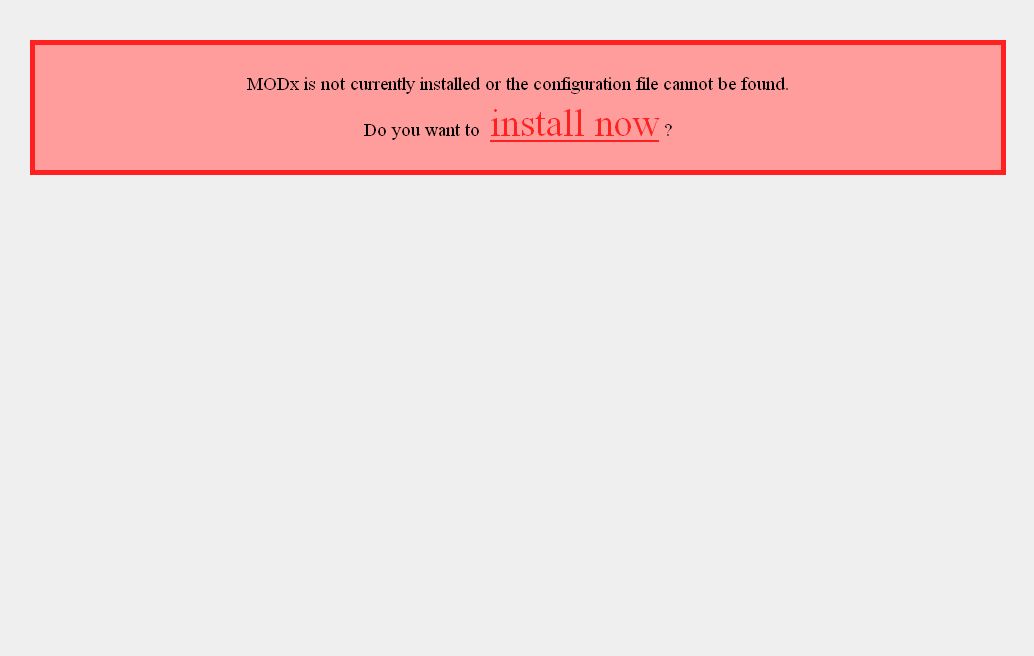
Click on “Install Now” to start the install process. You’re next presented with the first step of the install process, where you choose the language you want to use for your MODx install. Click Next to go to the next screen.
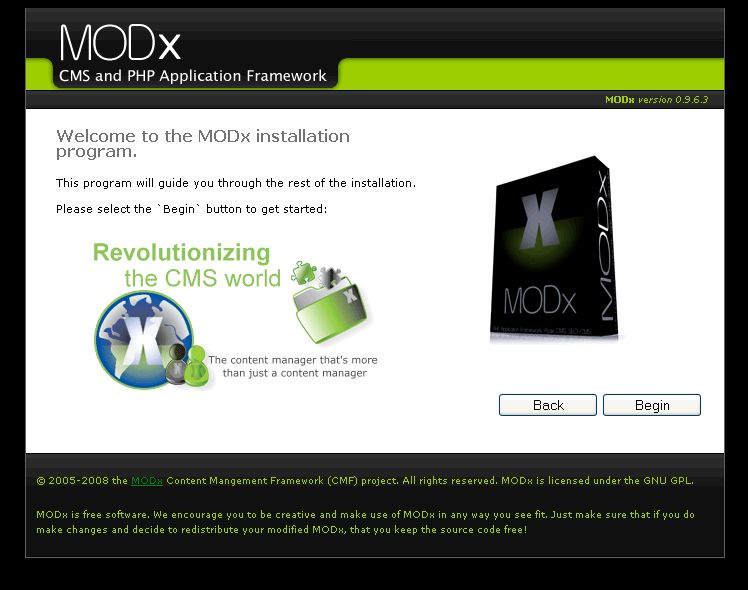
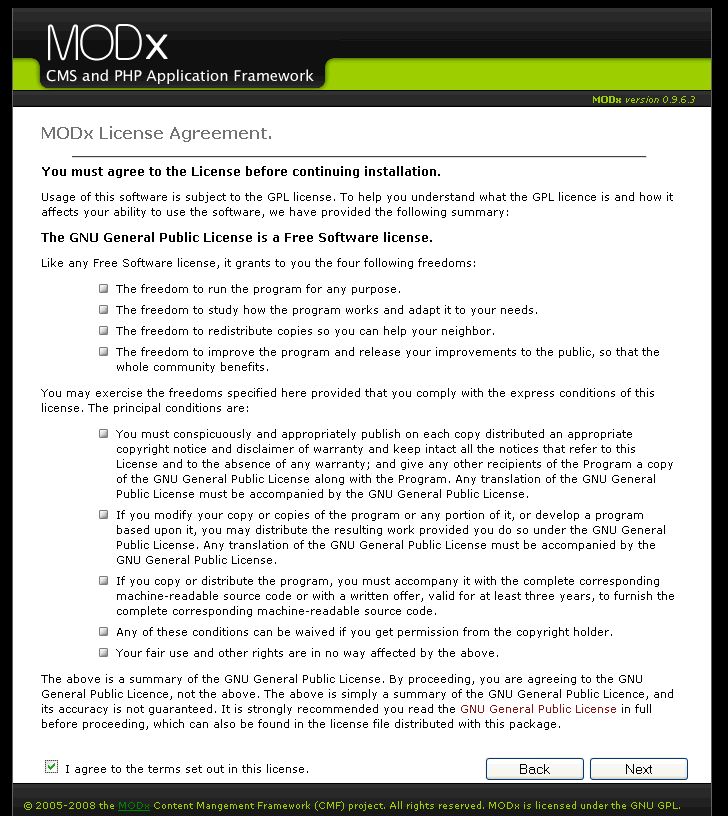
You are now ready to proceed in your chosen language, so click Begin. You are now presented with the licence terms that you need to agree to by checking the box at the bottom and clicking Next.
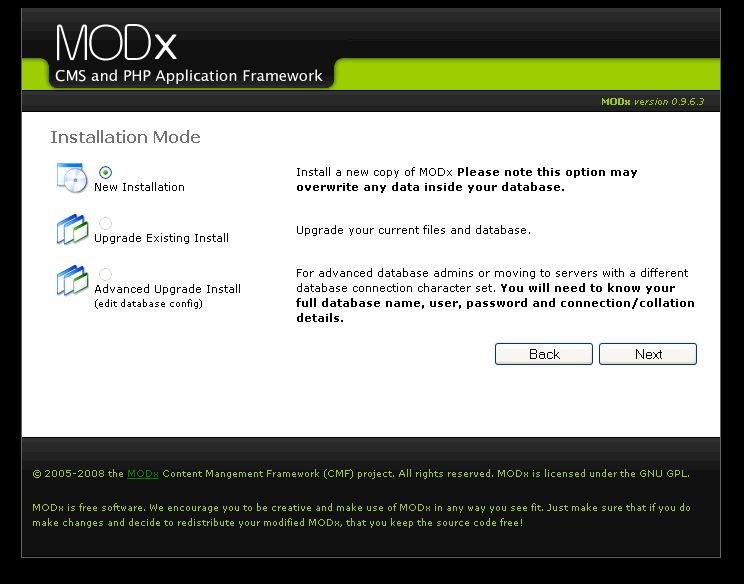
The next step is to select what kind of install you want to run. Since we’re starting out the obvious choice is “New Installation”
The next screen is where the nitty gritty part of the install process starts. At this point, MODx will attempt to create a database for you but first needs to test your database connection and get the collation information. The first step is to enter your connection information and then click “Click here to test your server connection and get the available collations”
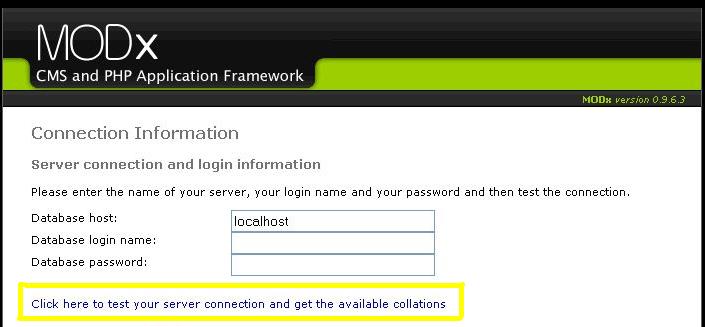
The information you enter here is generally your login information for your server. If the server connection is successful, you will see the success message as well as the database collation information entered in at the next step.
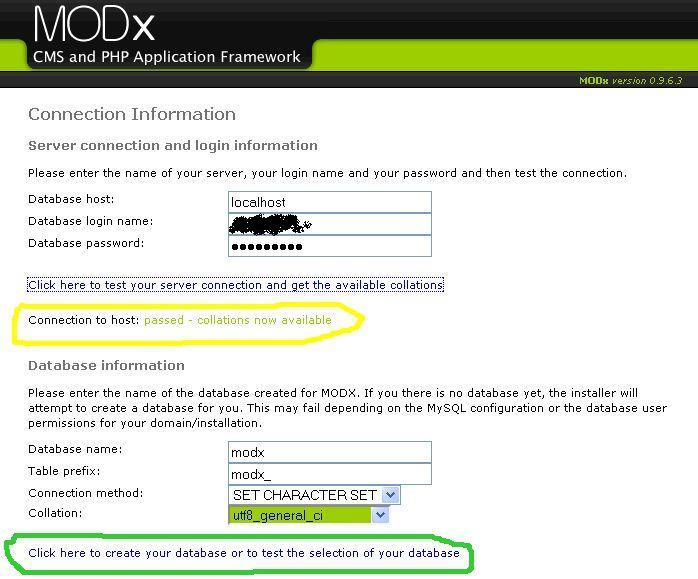
NB: More information on database collation provided in the comments: MODx is an international CMS with a large user base in non-english speaking regions. In order to accommodate the wide range of charsets, MODx does not limit you to any specific charset. Shane Sponagle
The next step is to now enter your database information. If you’ve already created a database, you can enter the database details and MODx will connect to the database. Otherwise, enter the name of your desired database and MODx will attempt to create it. If you get an error at this step, MODx will give you a suggestion on what you need to do, such as selecting a different character set. Once this is completed, you will see success message and you can then proceed to creating a default admin user.
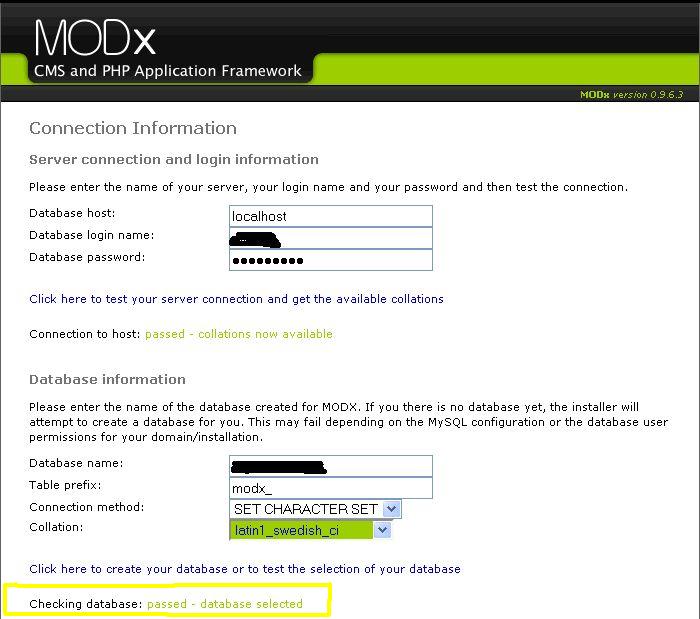
The final part of this step is to create your default admin user and then click to continue to the next step. The username and password you enter here will be the ones you use to log on into the admin backend and manage your website, so you want to make sure you remember this information and keep it secure.
The next screen allows you to select what components of MODx you want to install. The default MODx install package comes with a bunch of chunks and snippets (we will discuss these as we go) as well as the option to install a sample website. The best way to start as a newbie, in my opinion, is to NOT install the sample website, so I leave that unchecked, but I leave all the chunks and snippets checked as I will need them at one point or another. If you choose to not install them, you can always add them later on.
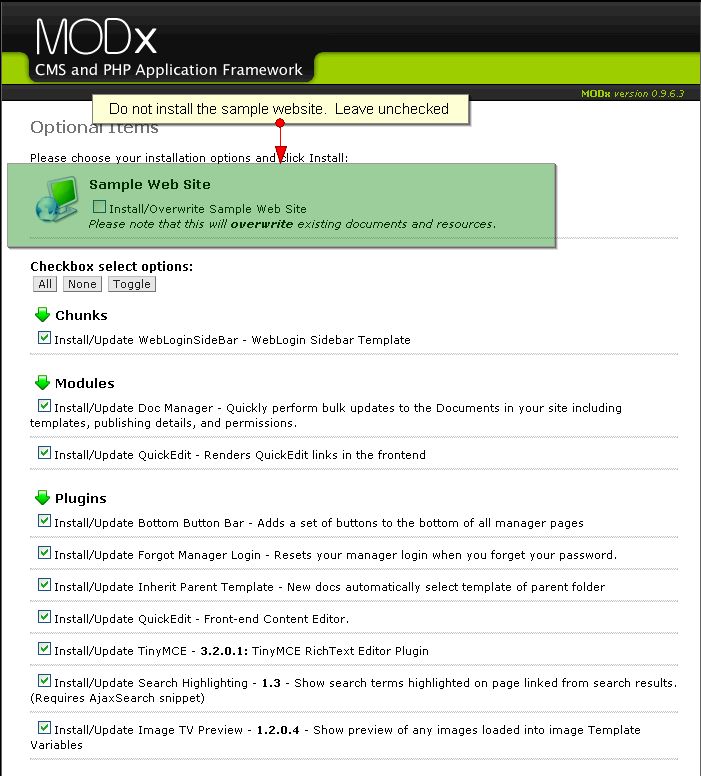
So leave the Sample website unchecked, and the rest checked. Then go to the bottom of the page and click “Install”. The next page will confirm whether or not everything is good to go and show you any server errors or issues that need to be resolved. If all is well and all systems go, you should see a screen that looks something like below:
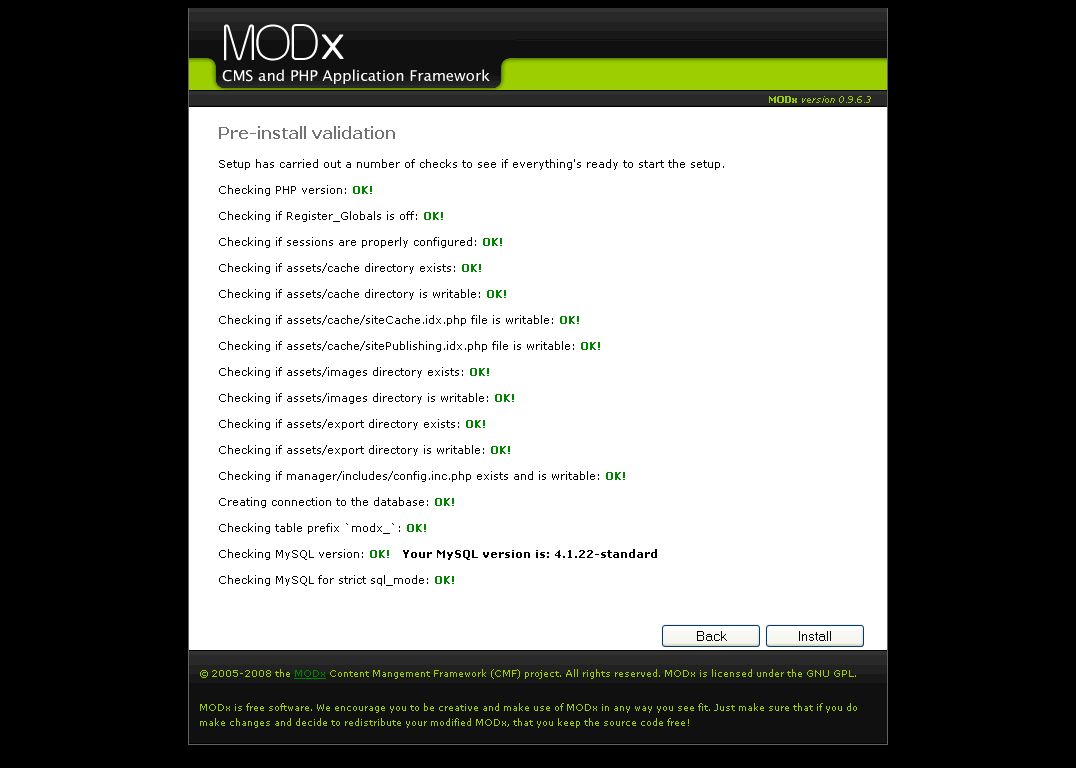
Excellent, so everything’s validated and we’re good to go. We next click “Install” and proceed on to the installation. MODx will install and give you an Install Results screen showing you that the installation of all the components you selected was successful, and at the very bottom there’s an option to remove the install folder and files, which you want to do for cleanup and security purposes.
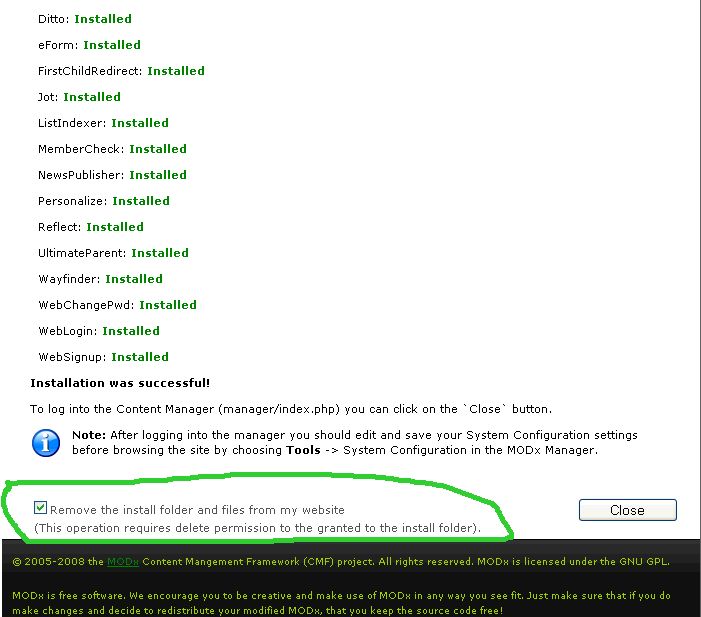
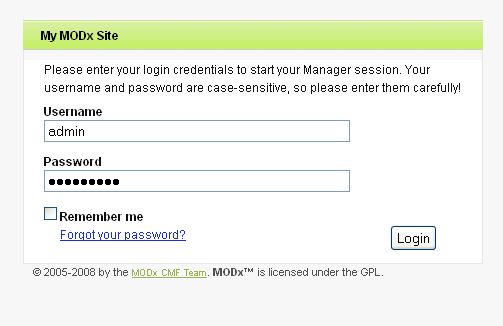
Clicking on “Close” completes your installation of MODx and takes you to your login screen where you should now enter your default admin username and password that you created during the installation.
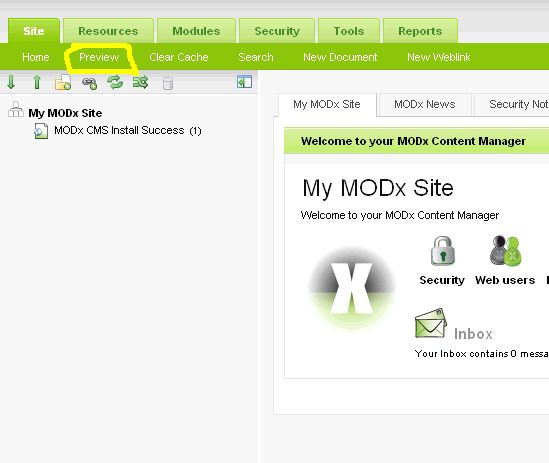
MODx is now installed successfully and we can now start building our website. What you see when you log in is the MODx administrative backend. We will explore all the parts of the backend as we use them so that you can see and explore them in context. But for now, take a look at the front end of your new MODx website either by entering the url of your site into your browser bar, or else clicking “Preview” from the admin backend.
This is what my Learn MODx website looks like at this point. It’s a default install with the default template and welcome to MODx text and tells me my install was successful.
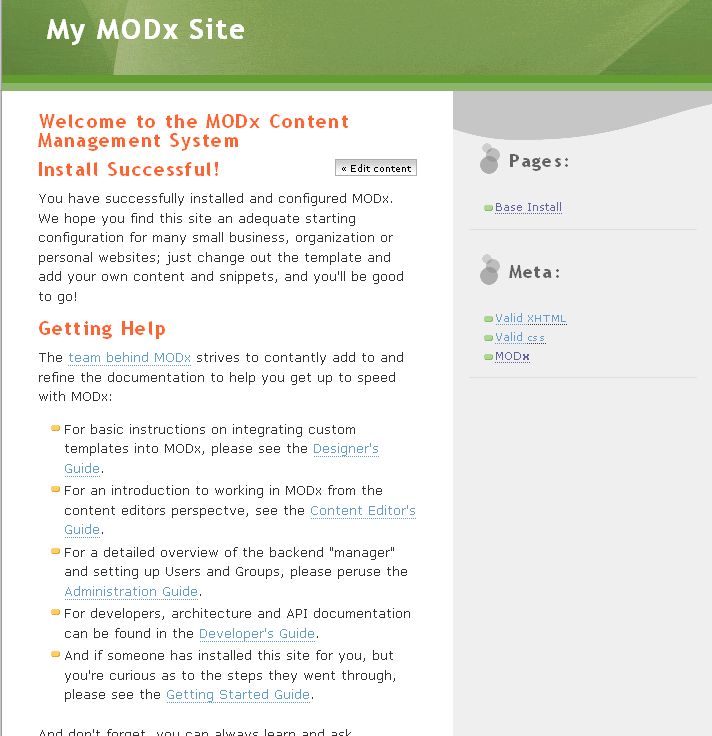
Success, we now have a basic default install of a MODx powered website. In the next installment, we’re going to look at working with MODx templates, implement a new template to make our MODx site look unique, and then take it from there. So stay tuned.
Addendum: In the followup comments to this post, Shane Sponagle pointed out to me that it may be beneficial to install the sample website since it serves as a great example to see how to build a site in MODx. I completely agree, but feel it can be a tad overwhelming to someone who is completely new to MODx, as was the case for me. Shane’s advise if pretty sound though, so for the purpose of these tutorials, I will work with the barebones install that I outlined in this post, but I do encourage you to install a second instance of MODx locally to explore and learn from.
Shane Sponagle is a MODx developer and very active member of the MODx community. He runs the MODx Developer Blog and can also be found at his freelance website MODx Guru. He is also one of the technical editors of the new MODx book MODx Web Development.
Great post on the MODx installation process. MODx is an international CMS with a large user base in non-english speaking regions. In order to accommodate the wide range of charsets, MODx does not limit you to any specific charset.
“The best way to start as a newbie, in my opinion, is to NOT install the sample website,..”
I agree and disagree with this statement. I agree in the sense that the demo site is a bit complex with a lot of features crammed into a small space, which can make it a bit overwhelming. But on the other hand it is a wealth of information and serves as a great example to see how to build a site in MODx (in particular the blog section). I keep a demo site running on my local server to use as a test environment.
You are on a roll. This series promises to be a great asset. Looking forward to the next post.
Shane,
Thanks much for your comment and for the additional clarifying info on collation.
Regarding the sample website, I found that when I was starting out with MODx installing the sample website just completely confused me :). Now that I know MODx better, I can install the sample website and look around and not feel so overwhelmed. I made the recommendation for complete newbies to not install the sample website because then they could just focus on getting the fundamentals down, and then explore the sample website once they’re more comfortable with the MODx terminology and with negotiating and navigating a MODx website. I should make this clearer in my post though.
Thanks again for the feedback!! This kind of feedback is what will make this series useful to everyone, myself included!! 🙂
mary
Very well done. I wish this series was on Nettuts+! Looking forward to part 3.
Thanks Jeffrey, part 3 should be coming up soon, just doing some final edits. I still have some tuts up my sleeve, I’d be happy to write for Nettuts+ 🙂
Sure. Email me with your ideas – when you’re ready. nettutsblog@gmail.com
This looks great!
One area that can be confounding to new users is how to create and connect to the DB which panels, etc. Perhaps some pointers to other tutorials on this?
For example, one thing I didn’t realize as a newbie is how my hosting service prepended something to the DB name I created or how to find out the exact name required to connect. Without this your dead in the water.
Some comments about the table prefix might also be helfpul. Should you change it or leave?
Just my 2 cents.
Terry,
Thanks for the feedback and the suggestion. I will think about this some more and probably create a little post about database considerations when installing MODx and link to any resources I find. If you know of any links containing information that may be useful please do let me know through the comments. I do realize if you’ve never setup databases this can be a little confusing, and sometimes even when you have 🙂
Thanks again, and I hope you continue to enjoy the series!
mary
Hi,I have installed Modx successfully on xxamp.The funny thing is that it allows me login,from there is shows a blank page.I havent tried anything with manager/index.php.However I found something wierd,the closing tag for the script is missing.Please help me to get startyed with Modx.Thanx in advance
Batsile
What version of MODX are you installing? Don’t worry about the closing tag, in purely PHP files the tag is not required.
I suspect you may have a corrupted download. I would recommend that you download MODX again and start from scratch 🙂
mary
I originally did a week ago what Shane suggested. Installed the default website. And it IS a bit overwhelming. So I thought I might follow along with you by doing a parallel install. Apparently that’s a no can do.
Any idea if I can still follow along, or should I just delete the original install and see what happens?
Matt,
When you say doing a parallel install is a no can do, what do you mean? Are you developing locally on your computer, or remotely on a hosted server?
Generally, it should be possible to do a second installation, just create a different database for your new installation so you don’t overwrite the original one, and give the new project a different name. If this isn’t working for you, and you’re not building a development website, it should be okay to scrap everything and start afresh.
Let me know what part you’re having trouble with and I’ll try to help.
mary
I was able to come up with a solution, from a Drupal helpsite, of all places.
Here is what I was trying to do originally: (2 modx installs in htdocs)
MAMP/htdocs/modx1
MAMP/htdocs/modx2
It did not like that, for some reason.
Changed it to: (1 modx install, with two different sites)
MAMP/htdocs/modx/site1
MAMP/htdocs/modx/site2
It seems to like that much better.
This is all locally, on my computer…
Now, I just need to figure out part 3.
Matt,
Glad you were able to figure that out. I’m not all that familiar with MAMP since I’m a PC person, but let me know if you have other questions and I’ll try to help!
mary
One (other) tutorial that would be very useful in terms of MODX documentation and filling in the gaps therein would be “Upgrading MODX” (step by step, niggly details included).
These are super great tuts!!! Thank you for doing this 🙂
Wendy
Wendy,
Thanks for the comment, glad you’re enjoying the tuts. I have never really worked in a different version of MODx so the issue of upgrading has never come up for me, so thanks for bringing that to my attention. I will definitely work on creating a tutorial on upgrading MODx.
See you around the blog 🙂
mary
Hi, I have to agree with you about ‘not installing the sample site’, before I found this article, I checked this box and it was very daunting at first, so this is just my opinion but for me, working as a beginner without the sample site is a bit of a relief 🙂
Thank you so much for your help so far. With this blog I have managed to install modx and I have used the rec. server hostcolor who have also been awesome and patient with their support.
I thought I share my experience and help others. I came really unstuck at 2 points:
1) I did not understand or click that I needed to upload the entire zipped file to the host.
2) In your screenshot showing the connection to the database it was confusing for me to see the samples you had entered. I entered my server login, and it gave me the green light. What it needed was the database login.
If your samples would look more like this:
database host: localhost
database login name: fritz_admin
database password: the password for your database user
database name: fritz_modx
table prefix: fritz_
it would make more sense.
Will move on to part 3 tonight.
Thank you so much for your assistance, much appreciated.
Thank you Fritz! Your information was exactly what I needed. I agree completely on the unclear labels. I wasted hours on this… but going now.
tnx again
Sorry for the confusion. I guess I could have been a little clearer with that 🙂
I downloaded a zip file (MODX 1.0.0) and extracted in jzip.
I’m unclear how to proceed.
Have looked thru the files for an exe or install file – none exists…
The screen shots you present after the 3rd shot – installation mode – do not appear.
I have a host (InMotion) but would prefer to do the development on my own machine if possible.
Can I use my machine as my ‘server’?
Should I copy the extracted files to a certain location? any preference?
NORM—
I can answer your question about using a local server. You’ll have to install on your machine Apache, MySql, and php.
There are a number of programs that make this as easy as installing any other program. I use wampserver on windows xp. There is something similar for mac (google “mamp”) I’ve installed it all from scratch several times. You’ll learn a lot that way, but it might take you a while.
Norm,
Bob’s advice is spot on! If you would like me to I can walk you through installing everything you need on your machine so you can play with MODx. Just let me know. Are you on Windows or Mac?
Will you not need the Install folder if your Developing on WAMP/MAMP local host and then Deploying to a live LAMP host?
Need it for upgrade/advanced install to import the database.
You won’t need it. When you upgrade you upload the new version with its own install folder which then also gets deleted after the upgrade.
I’m on a Mac using MAMP and I was unable to get modx to create the database.
I had to login to myPHPadmin, create a database (i called it my_modx) and added myself as a user with full permissions. Once I did this and went back to the modx install and entered the database, user name, and password it worked fine.
Eliot
This happens sometimes. Often it has to do with how you select the character set.
mary
Reading your Modx tutorial for newbies and I am stuck at Install. After putting the contents of the Modx package on a remote server, the next step suggests that going to a project url or (the server url where the folders are to be uploaded) will instigate an install screen. I am not clear on why/how this is supposed to happen. There is nothing at the project url yet (we haven’t created a home page) and when I go to the server address with my files (e.g. Modx unzipped folder and other project folders), I am simply able to view the contents on the server.
Thanks for clarifying this step.
R
Ren
Once you upload all the MODx files to your server and place them either in the root or in a folder, you just navigate to that url and you should be able to see the install page telling you to start the install. The home page is already in the files that you upload, if you look in the extracted package there’s a file index.php, this is the file we’re loading.
What version of MODx are you uploading? Have you made sure you’ve extracted and uploaded all the files? Does you server that you’re uploading to run PHP?
mary
Thanks for writing this. I just discovered modx as a alternative to wordpress when building commercial sites. Will def be visiting your site for awhile
Brendan
Welcome to the coding pad and thank you for your feedback.
mary
Hi Mary
thanks for such a great youtube tutorial about modx setup. I have successfully done the installation. Could you please tell me how can i do the parallel installation of modx sample website just for my own reference.
Regards
Ali
Ali
Your best bet would be to simply do another install and this time allow it to install the sample website. To keep things clean set it up on a completely separate database. If your current install is on a hosted/live server, you could install the sample website on a local server, such as on your own computer using Wampserver (on Windows) or MAMP (on Mac). Is this what you’re asking?
mary
Hola amigo ya instale MODx en local y lo estoy probando su tutorial fue de gran ayuda , estoy muy estuciasmado en conocer este CMS y creo que su blog sera de gran ayuda
Gracias!!!!!!!!
excuse my English
Hello friend.MODx installed locally and I am trying your tutorial was very helpful, I am very estuciasmado to know this CMS and I think your blog will be of great help
Thanks !!!!!!!!!!!!
I did load MAMP onto my Mac. Here is the URL of the website served locally.
file:///Applications/MAMP/htdocs/index.htm
Feel like a dummy. Were do you put the Modx file once it is unzipped. Not sure where to put the file.
Unzip the file onto your desktop and then copy or upload the contents of the folder to your webserver.
John
I haven’t used MAMP much, but these instructions on how to set up WordPress on MAMP should work for MODx too.
http://codex.wordpress.org/Installing_WordPress_Locally_on_Your_Mac_With_MAMP
Let me know if you’re still stuck!
mary
Thoughout your tutorials a click on the images raises a new “window” in foreground leaving the ghosted view of the original page in background. I also see this on the MODx website.
How is this done?
Thank you.
This is called a lightbox, there are several Lightbox scripts out there, e.g. http://www.huddletogether.com/projects/lightbox2/. On my blog, which uses WordPress, I use a Lightbox plugin. On MODx, you can also incorporate Lightbox or Thickbox for the same effect. There are many lightbox scripts, and also jQuery plugins. If you look around the MODx extras sections there may be a snippet already that does this, or you can just incorporate one of the js scripts out there yourself.
mary
I am trying to install modx on my computer which has webserver installed but giving me the fail response at the “create or test selection of your database”. I have logged in to mysql through command prompt to create the database without password, it still gives me the fail response. My system has apache, mysql and php installed. Does anyone has any video demostrating this installation process? I would really appreciate any help. I am a newbie to web design.
Thank you.
Yusuf
Here’s one screencast to get you started. https://codingpad.maryspad.com/2009/11/16/install-modx-cms-screencast/
Also, if you’re new to web development it might be helpful to watch the series of videos listed at the bottom of this page: https://codingpad.maryspad.com/beginner-tutorials/
mary
Thanks for making this easy!
Thank you Mary. The video is very informative.
Hi!
Totally new to MODx and tried to install it on my local wamp server per your instructions. However, when I test it (http://localhost/test), I get a page showing “Index of/test” with 2 files viz. “Parent Directory” and “modx-1.0.4” and only if I open the latter, I reach the installation screen and the url is now reading “http://localhost/test/modx-1.0.4”
Have I unzipped my MODx installation into the wrong folder (wamp/www/test)?
Would appreciate a reply because I don’t want to proceed further and end up creating the entire site in “localhost/test/modx-1.0.4” rather than “localhost/test”
Jack,
When you unzip the files it’s creating a folder called modx-1.0.4. What you need to do is then move all those files out of the modx folder and into your test folder before you do the install.
Hope this makes sense
mary
Mary,
Thanks for your help. Actually, I just deleted the “test” folder and renamed that modx-1.0.4 as “test”, which did the trick.
Now I’ve moved on to the next tutorial (part 3), so you’ll probably hear from me again if I run into any more issues, although I’ll try my best not to have to trouble you further.
Jack
Jack
Cool, glad you got that sorted. Feel free to leave any questions you have in the comments. I check in and respond as regularly as I can.
mary
Hi Mary,
I am not a newbie to web development of CMS applications.
Just came across MODX and the write up as great, so thought I’d try it. After following all the installation instructions, I successfully completed the install MODx Revolution 2.0.0-pl rev7212. However when logging into Manager, after successful log in, the Manager UI is not displayed. Instead I get a blank page. After reading various posts in forums, I tried using the /index.php?a=26 and got the manager UI. I see that there is no sample site installed. I can navigate to various sections OK but clicking on the HOME link, goes to blank screen again. I also see that under the Reports – System Info, it does not show up the MySQL database details.
Can you assist please.
Thanks
Mauricio
hey mauricio
First thing, this set of tuts is for MODx Evolution, not Revolution, so if you follow them while working with Revo you may get stuck somewhere along the way as some of the syntax and such has changed, and not all the snippets for Evolution would be present in Revolution. Plus the way you add snippets is different in Revo.
Second, MODx Revolution doesn’t come with a sample site or a default theme or default snippets and such. It’s a blank slate, so you build in your own stuff, but you can grab premade templates and I believe there may also be a sample site (not sure about this) from the repository using the package manager. However, the docs on the wiki/svn repo are very good, especially if you’re not new to this stuff – http://svn.modxcms.com/docs/display/revolution20/Home
Third, I’m not sure about the blank page in the manager UI, haven’t experienced that before. I’ve seen on the forums though that in some cases it can be a memory problem. The other thing to check is what version of MySQL you’re running, Revo is not compatible with version 5.0.51, here’s a read about that: http://svn.modxcms.com/docs/display/revolution20/MySQL+5.0.51+Issues
Hope this helps somewhat.
mary
Thanks for your prompt feedback Mary. It clarifies the missing sample site but may also explain why the site will not load up as the site is missing. The MySQL version my ISP has for my hosting account is ver 5.0.37
Hi,
I took a new web hosting server and trying to install modx and receiving following error while installing. I have shell access also, kindly suggest me the secure way to solve this problem.
Checking if sessions are properly configured: OK!
Checking if /assets/cache and /assets/cache/rss directories exist: OK!
Checking if /assets/cache and /assets/cache/rss directories are writable: FAILED!
Checking if /assets/cache/siteCache.idx.php file is writable: FAILED!
Checking if /assets/cache/sitePublishing.idx.php file is writable: FAILED!
Checking if /assets/images, /assets/files, /assets/flash and /assets/media directories exists: OK!
Checking if /assets/images, /assets/files, /assets/flash and /assets/media directories are writable: FAILED!
Checking if /assets/export directory exists: OK!
Checking if /assets/export directory is writable: FAILED!
Have you checked that the directories ARE writable? You may need to chmod the mentioned folders and files to allow them to be edited.
mary
hey i’m having a problem with MODx Revolution 2.0 . All the pages in teh manager are blank and i dont know how to fix it. any suggestions ?
Hey Shawn
Can you give me some background? Is this a new site, have you already added content? Was it working fine? What happened before you noticed the problem? etc,
I’m totally new to MODX. A client approached me with various issues on their site which some one else built. I have never used modx.
They are running MODx Revolution MODx Revolution 2.0.0-pl rev7212.
Basically the problem is when i login to the manager I see all the navigation buttons at the top but they only take me to blank pages.
http://img210.imageshack.us/img210/2772/captur1111e.png
No matter what i click on nothign loads. I jsut see the nav bar and a white page.
Any suggestions would be appreciated. I’ve tried almost everything suggested here on the forums for similar issues.
Re Second Install On Bluehost
This time I got “Success” in connecting to database, but when I then ran domain/setup, I got
“503 Error Could not load MODX config file”
Thank you for your help.
Bob Batson
Bob,
You may have a corrupted upload of MODX. Try downloading MODX again and uploading it to your server.
mary
Hi Mary,
I want to install Modx 2.2.8-pl Standard Traditional, but I facing error, please see error below:
503 Error
Could not load MODX config file.
Please help me how can I install this?
Thanks
Saleem,
First and foremost, if you’re installing MODX Revolution you should be following the MODX Revolution tutorials, these ones are for MODX Evolution. See https://codingpad.maryspad.com/2010/08/23/modx-revolution-for-beginners-part-2-installation/.
Second, make sure that you append /setup to the end of your url for the install to start
Third, if this fails, you may have a corrupted upload and you should try downloading the MODX install zip again and starting from scratch.
Let me know if this helps
cheers
mary